
Tool update and guide
An Easier Way to Build Sync Grids on the Sync Pair Detail Page
The Sync Grid on each sync pair’s detail page now makes it easier to plan your build as you go. Select the tiles you want, check their connecting paths and energy cost, then save or share your build.
- Automatically connect a path to the tile you want
- Check energy used and remaining as you build
- Save a build or share it with a link
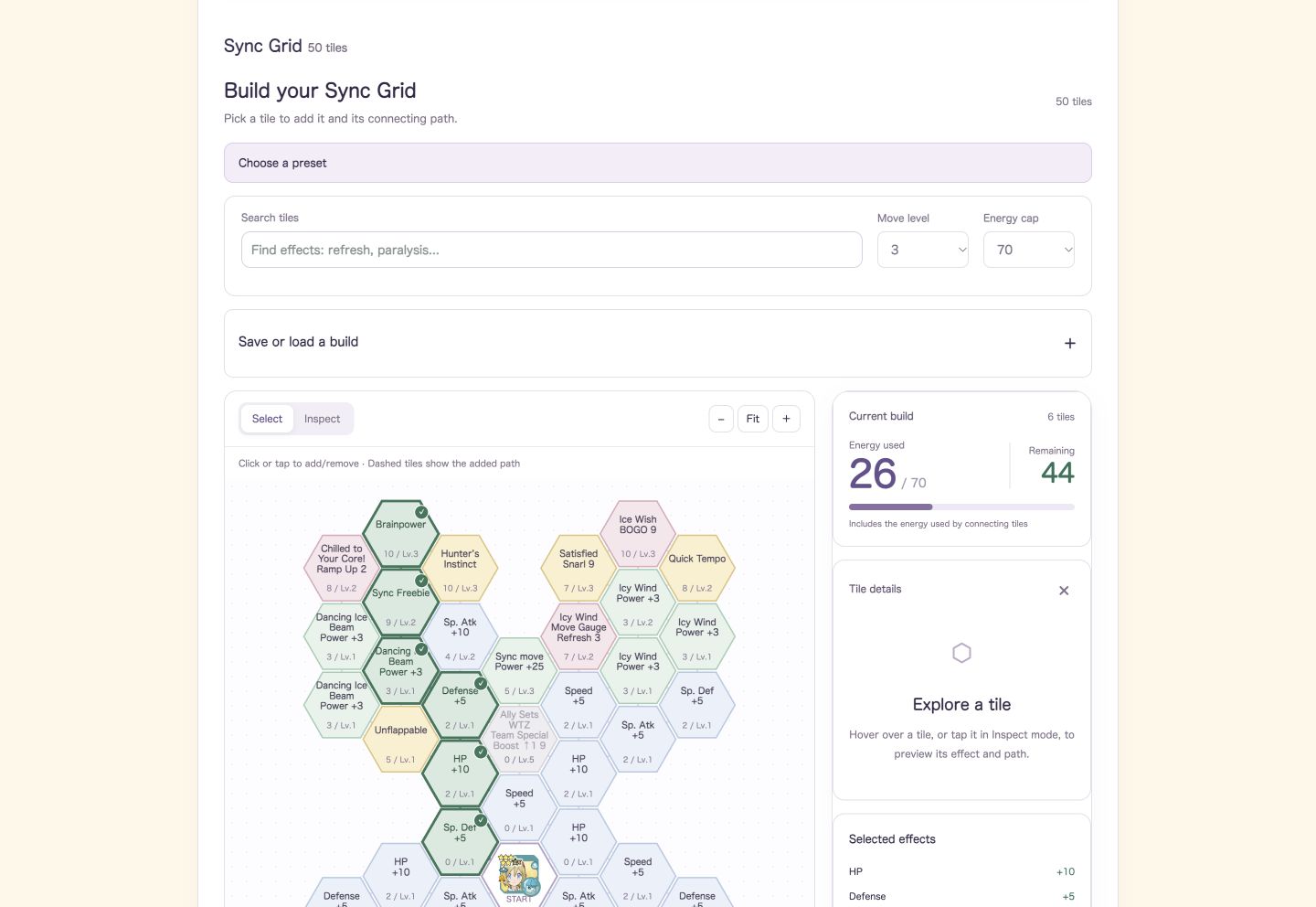
“I want this effect.” “I want a stronger sync move.” The updated interface lets you try out those ideas by selecting tiles directly on the grid. Using Irida & Glaceon as an example, this article introduces the improvements and walks you through the basics.
Add the tile you want, along with its path
In Select mode, click or tap a tile to add or remove it. If you select a tile farther away, the tiles needed to connect a path to it are selected as well.
Tile details shows the tile’s own energy cost separately from the energy needed for its path. You can also check Extra energy, including path and the total after adding it before pressing Add tile and path. This makes it easier to see how much more energy you need for the effect you want.
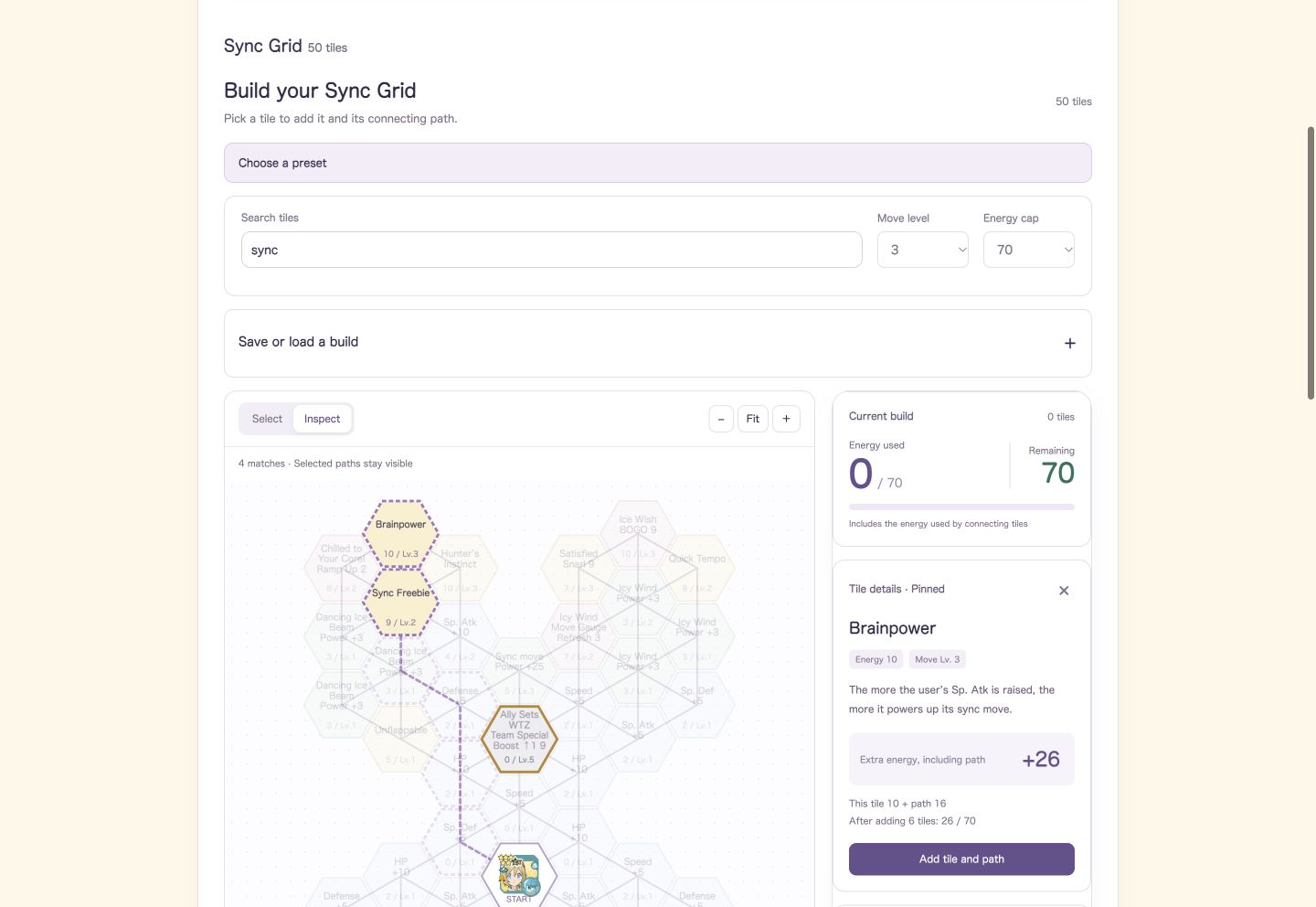
Read an effect without changing your build
If you want to read the description first, switch to Inspect. In this mode, selecting a tile lets you view its full effect, required move level, energy cost, and connecting path without changing your build.
On a computer, hover over a tile to inspect it. On a phone, use Inspect and tap the tile you want to read. Full tile names appear in Tile details even when their labels on the grid are shortened, making it easier to compare effects with similar names.
Track remaining energy and match your own unlocks
Current build shows the number of selected tiles, energy used, and energy remaining. Connecting tiles count toward the total, so you can add or remove tiles while checking whether your build stays within the cap.
You can set the move level from 1 to 5 and the energy cap from 60 to 70. Set these to match your own unlocks before you begin, so you can plan for the conditions you will actually use. Tiles with unmet unlock requirements appear in gray.
| Feature | What it does |
|---|---|
| Search tiles | Enter part of a name or effect to highlight matching tiles. |
| − / Fit / + | Zoom the grid out or in, or return to a view of the whole grid. |
| Undo | Return to your previous build and try a different selection. |
| Selected effects | Review the effects you have acquired and check whether they fit your build’s purpose. |
Removing a tile along a path also removes any tiles farther along that become disconnected. If you are trying out different selections, use Undo to return to the previous build.
Make your first build in three steps
- Set your own conditions
Open the sync pair’s Sync Grid tab, then set the move level and energy cap.
- Find and select the effects you want
Use Search tiles or Inspect, then add tiles while checking their paths and energy costs.
- Review, save, and share
Check your remaining energy and Selected effects, then save when the build is ready. Use a share link if you want to discuss it with someone.
If presets are available for the sync pair, you can use Choose a preset as a starting point, then adjust it to suit your move level and how you plan to use the pair.
Try it when planning your training or team
You can look up effects and try out ideas such as, “If I take this tile, how should I spend the remaining energy?” Once you know which sync pair you want to use, open the Sync Grid tab on its detail page and give it a try.
For a closer comparison of move damage, open the Damage Calculator. To explore combinations of three sync pairs and their action order, use the Team Builder. Matching the training settings and Sync Grids lets you carry your grid ideas into team planning.
Automatic path connection creates a path to the tile you select. Adjust your tile choices to suit your team and goals.